

Every repair in fi[x]in for iPhone and iPad follows the same path: you show the app the problem, it tells you what it thinks is wrong and how sure it is, it hands you a step-by-step guide, and it works through the job with you. The diagnosis runs on your device — no upload, no signal required.
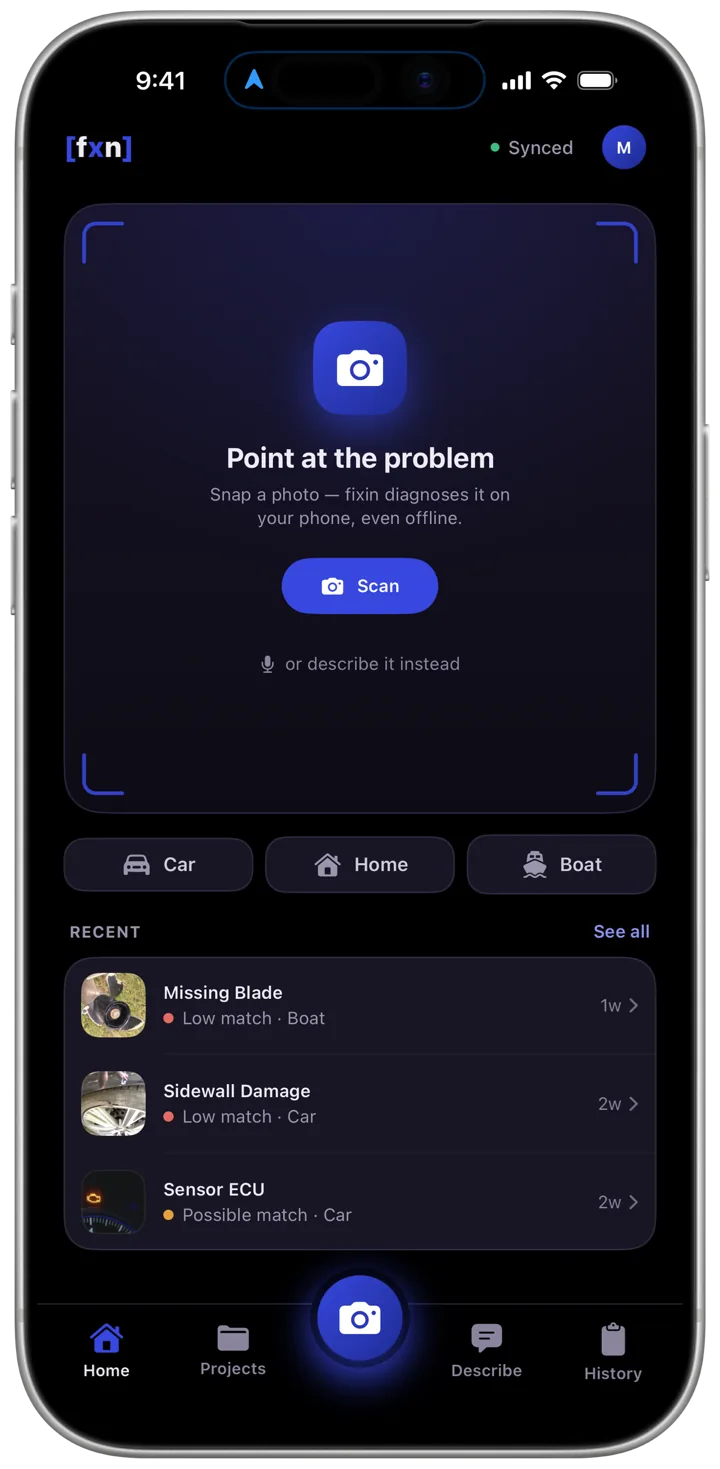
Open fi[x]in and photograph the problem — a warning light, a leak, a cracked fitting, a stain on a ceiling. The home screen is the camera: a viewfinder, one Scan button, and the option to describe the problem in words instead if a photo won't tell the story.
The image is classified on your device by fi[x]in's named ML engine — Sapphire 4.8 and Emerald 5.3 are the newest. Nothing is uploaded to identify it, so the analysis works the same in a parking garage or a boatyard with no signal as it does on wifi. You don't need an account to start.
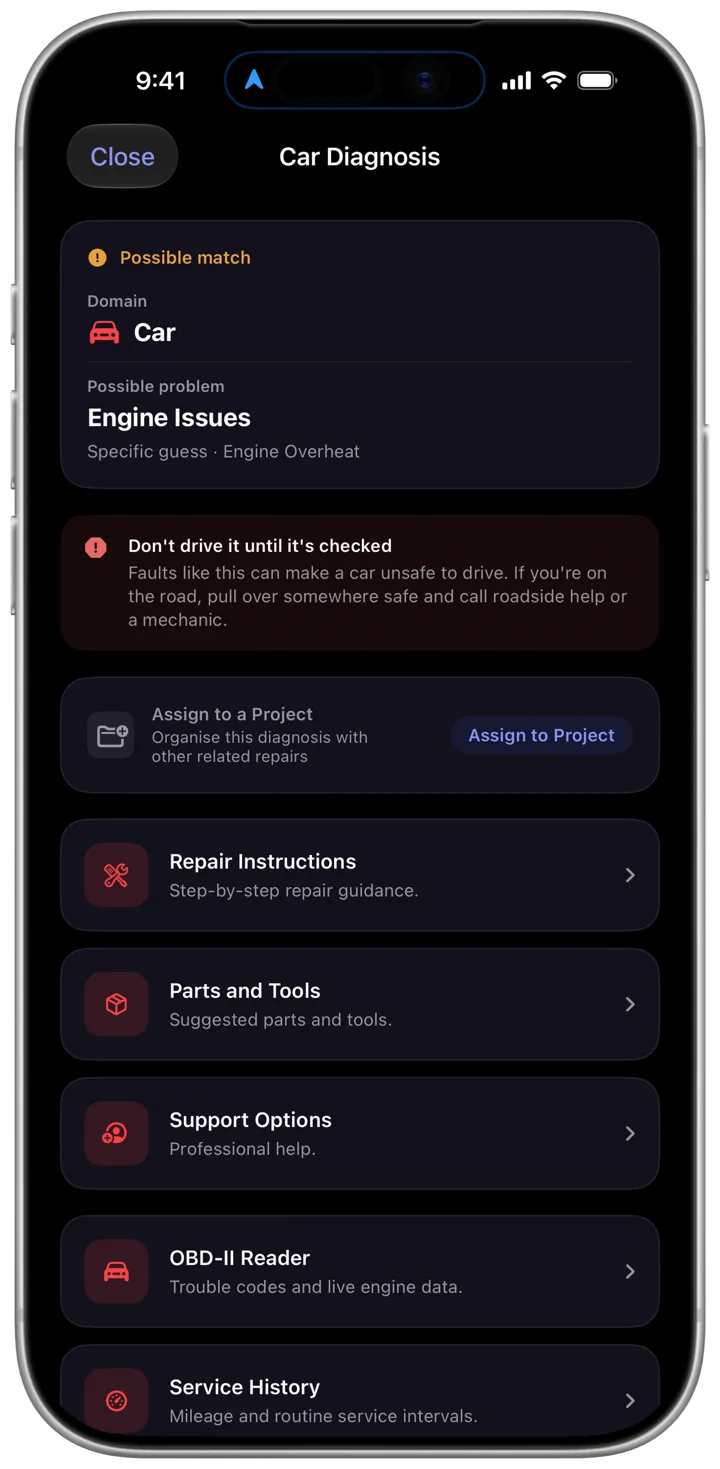
Classification comes back with the domain and the diagnosis named outright — here, a car with engine issues, serious enough for a warning not to drive it — and how strongly the photo actually matched it. When naming a specific fault would be a guess, fi[x]in stops at the category and says so. From there the screen becomes the hub for the job: repair instructions, the tools and supplies to have on hand, and support options.
What sits below that adapts to the domain. A car adds roadside help and a recall lookup; a boat adds Emergency Help for when you're in danger on the water; a home adds water, gas, and breaker shut-off guidance. Assign the diagnosis to a project and it files itself with the other work on that boat, vehicle, or house.
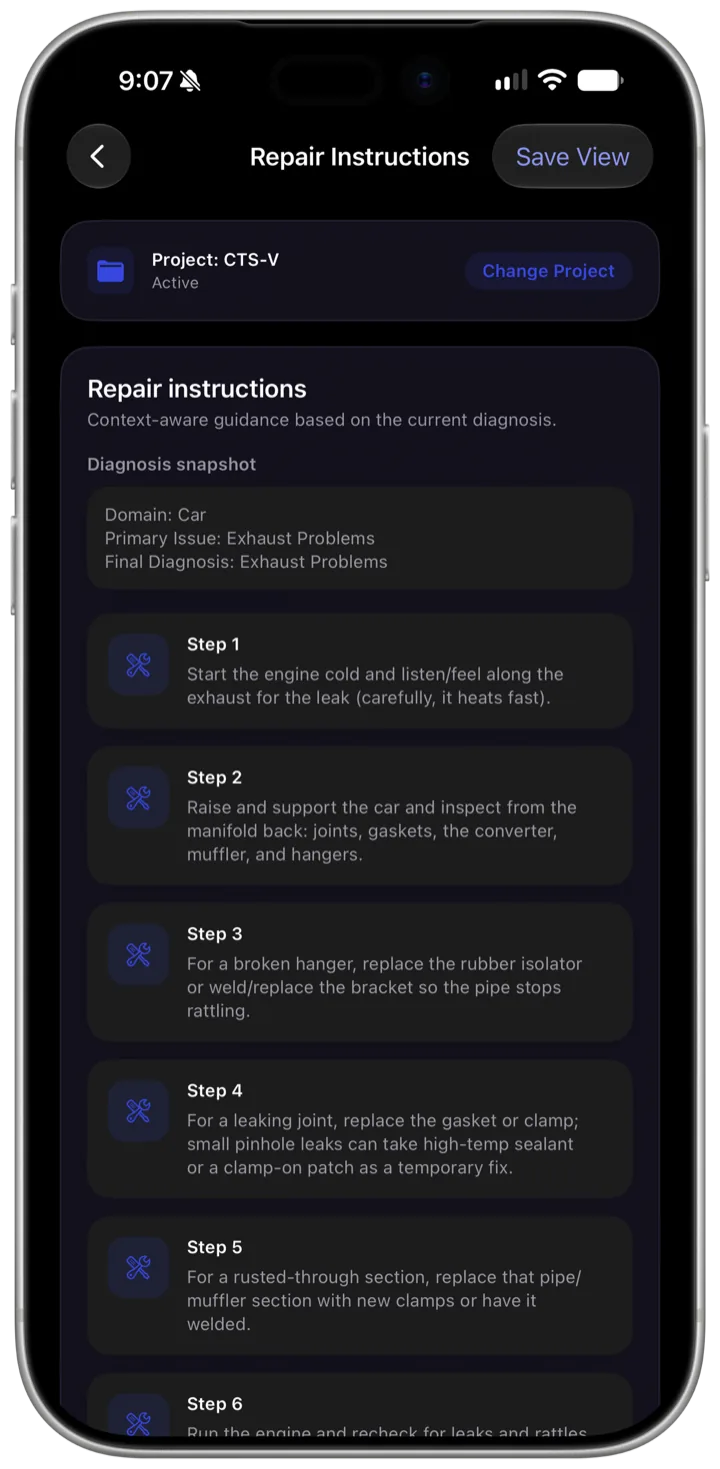
From the diagnosis, fi[x]in opens a step-by-step guide from its library of 2,262. Safety comes first, then the ordered steps, then the tools and supplies to have on hand.
Every built-in guide comes in three levels of detail. Beginner starts with visual checks and clear points to stop and call a pro; Pro / Tech goes straight to diagnostics, testing, and checking the repair afterward. Pick yours in Settings, under Repair Guides.
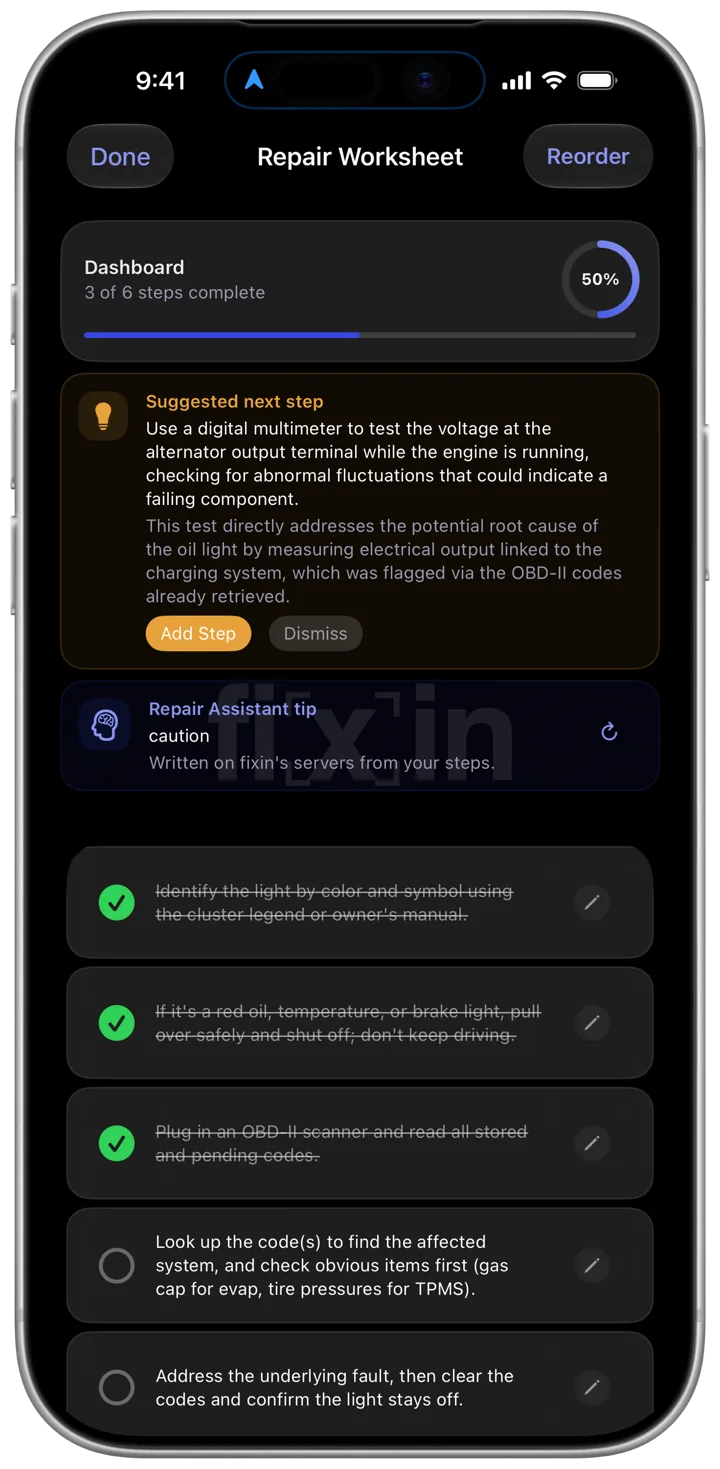
The instructions become a worksheet you actually work from. Tick each step off as you go and the progress ring tracks the job; reorder steps, edit the wording for your own setup, or add a step the guide didn't know about. The worksheet here is a different job entirely — tracking down a dashboard warning light — because the four steps don't change with what you're fixing.
A suggested next step appears as you work, drawn from what you've already ticked off, and a Repair Assistant tip sits beside it. The finished worksheet stays attached to the project — so next season there is a record of what was done.
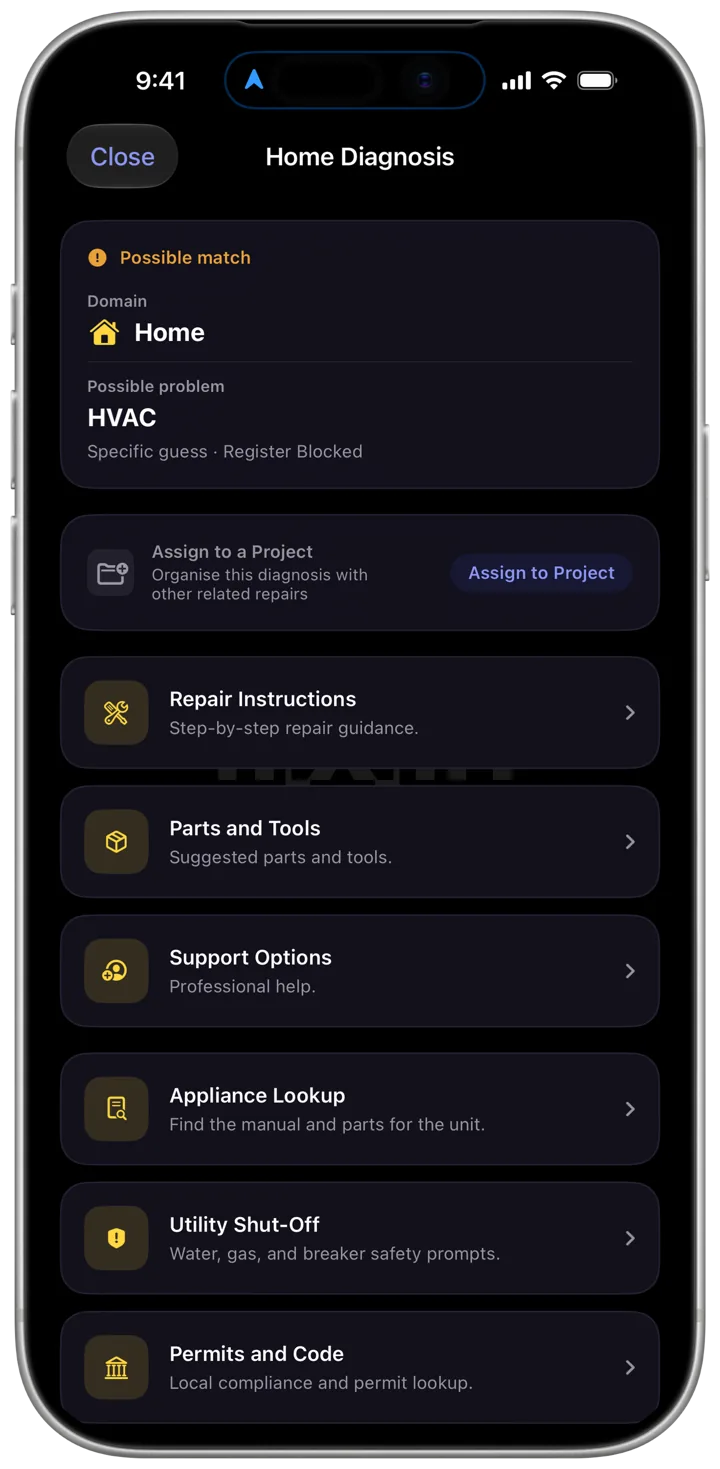
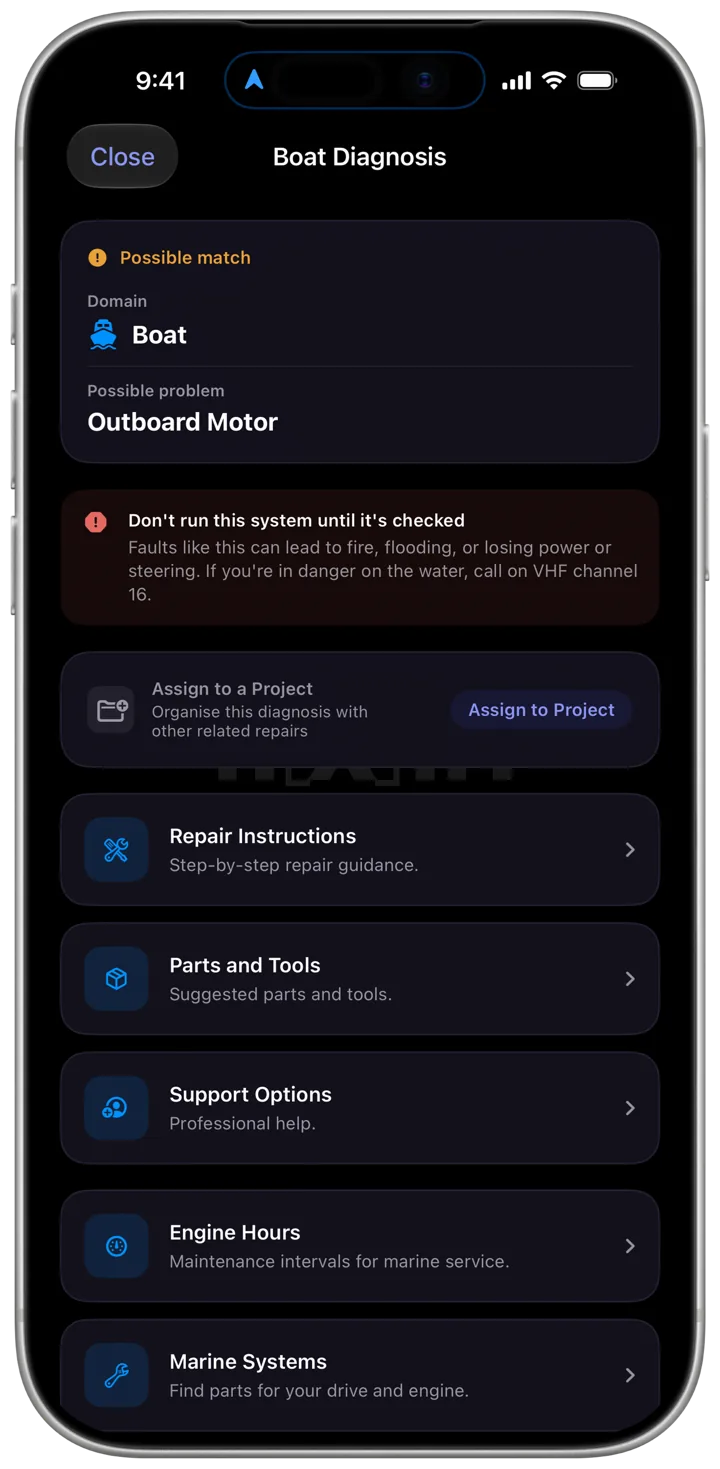
fi[x]in for Android follows the same four steps as iOS, with the same named engines running on the phone. The screens are laid out for Android and a few things differ — a worksheet exports to PDF, and repair guides come in one level of detail rather than three — but the diagnosis and the repair flow are the same.
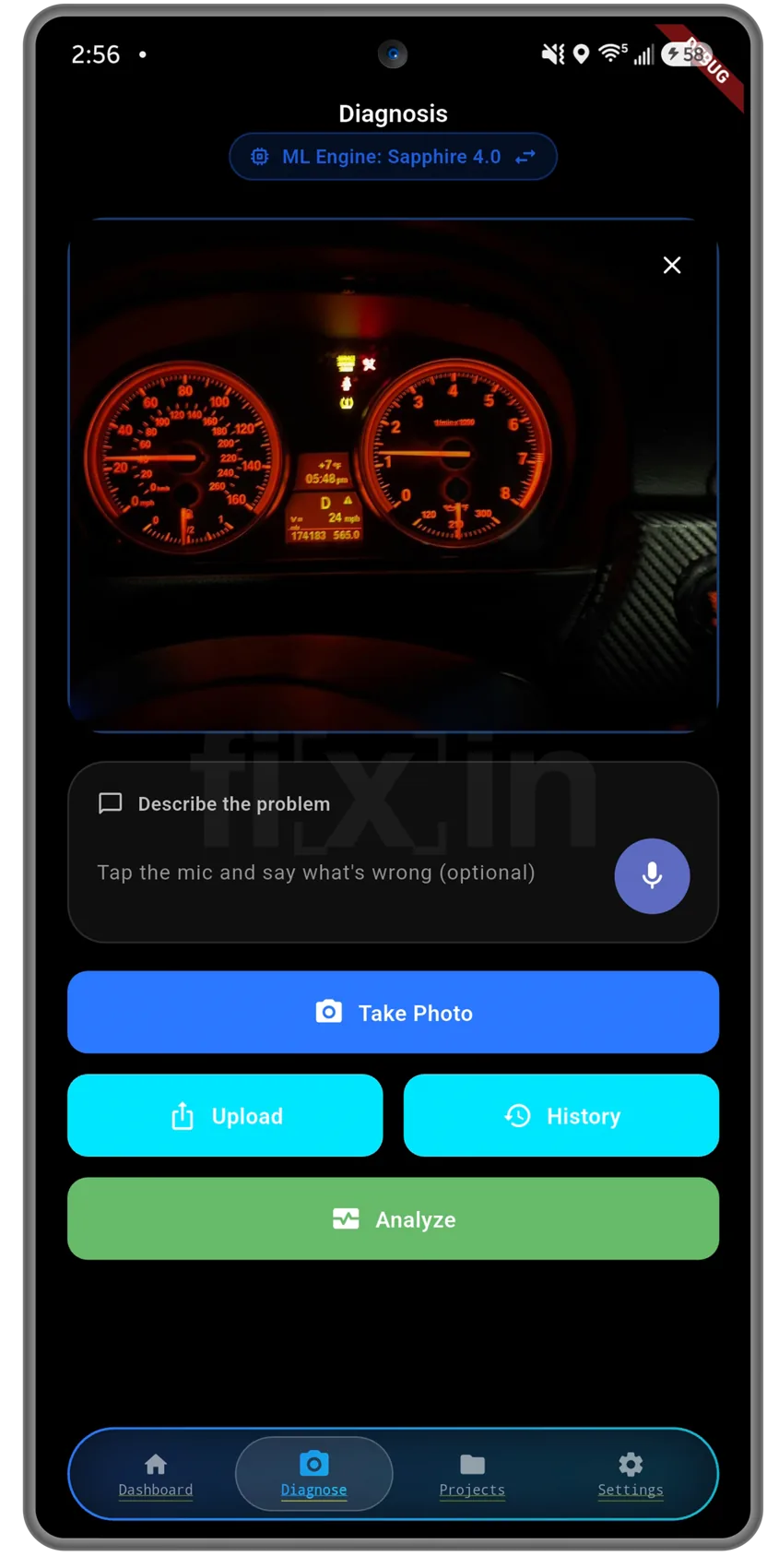
Take the photo in the app or pull one in from your gallery — a warning light, a leak, a cracked fitting, a stain on a ceiling. The shot sits in front of you before anything is analyzed, so you can retake it if the framing is off.
Add a note if the photo doesn't tell the whole story — type it, or tap the mic and say what's wrong. Then hit Analyze and the image is classified on your device; nothing is uploaded to identify it, and the diagnosis works with no connection at all. No photo at all? The Describe tab diagnoses from words alone.
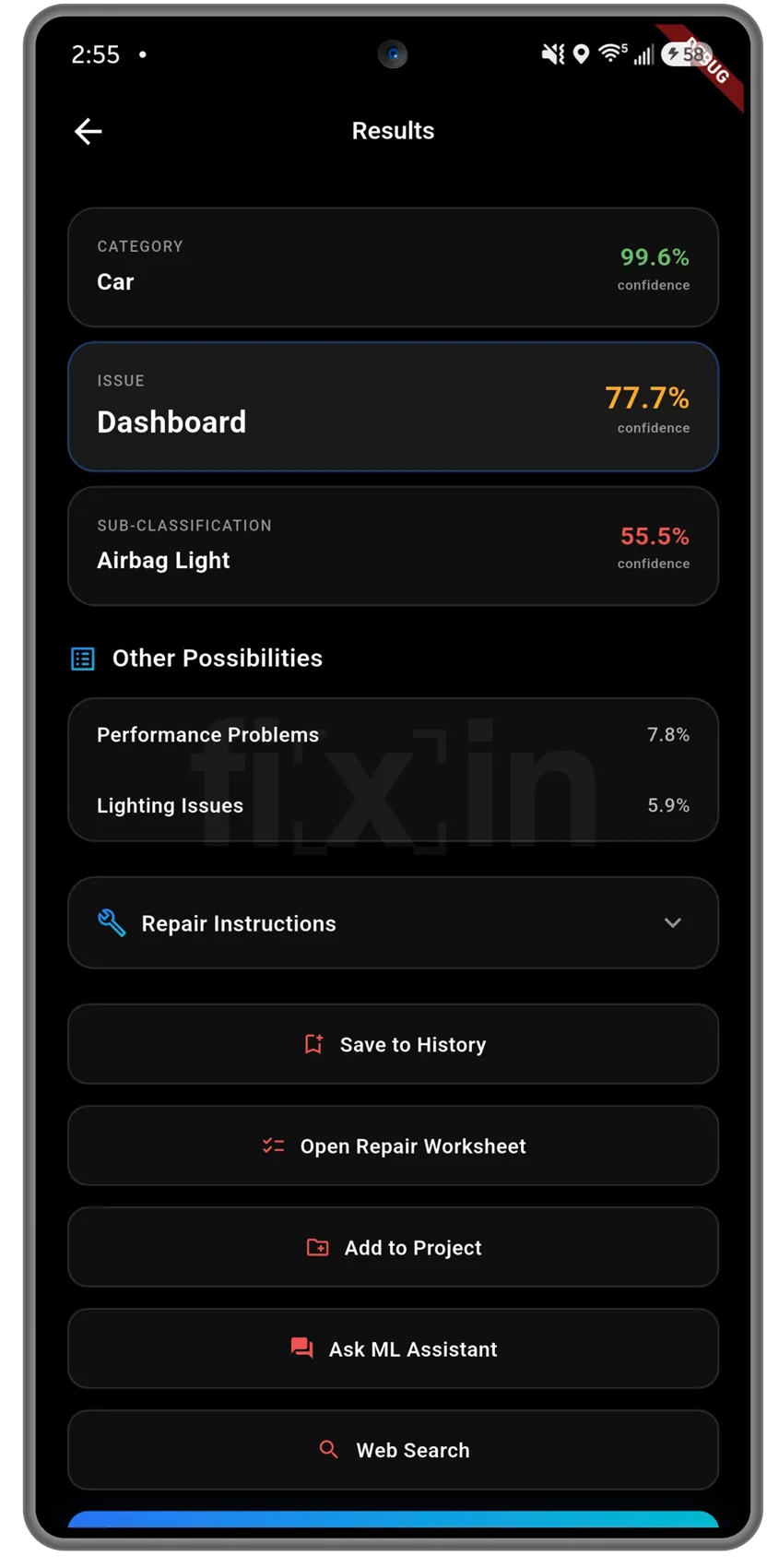
The result names the category it recognised and, where the photo supports it, the specific issue inside it — with how well the photo matched said in words: strong, possible, or low. Every diagnosis is saved to History on its own.
Ranked alternates sit underneath, so a call the model was less sure about doesn't hide the runner-up. From there you can open the repair instructions, start a worksheet, file it under a project, or — with an account — ask the Repair Assistant about it.
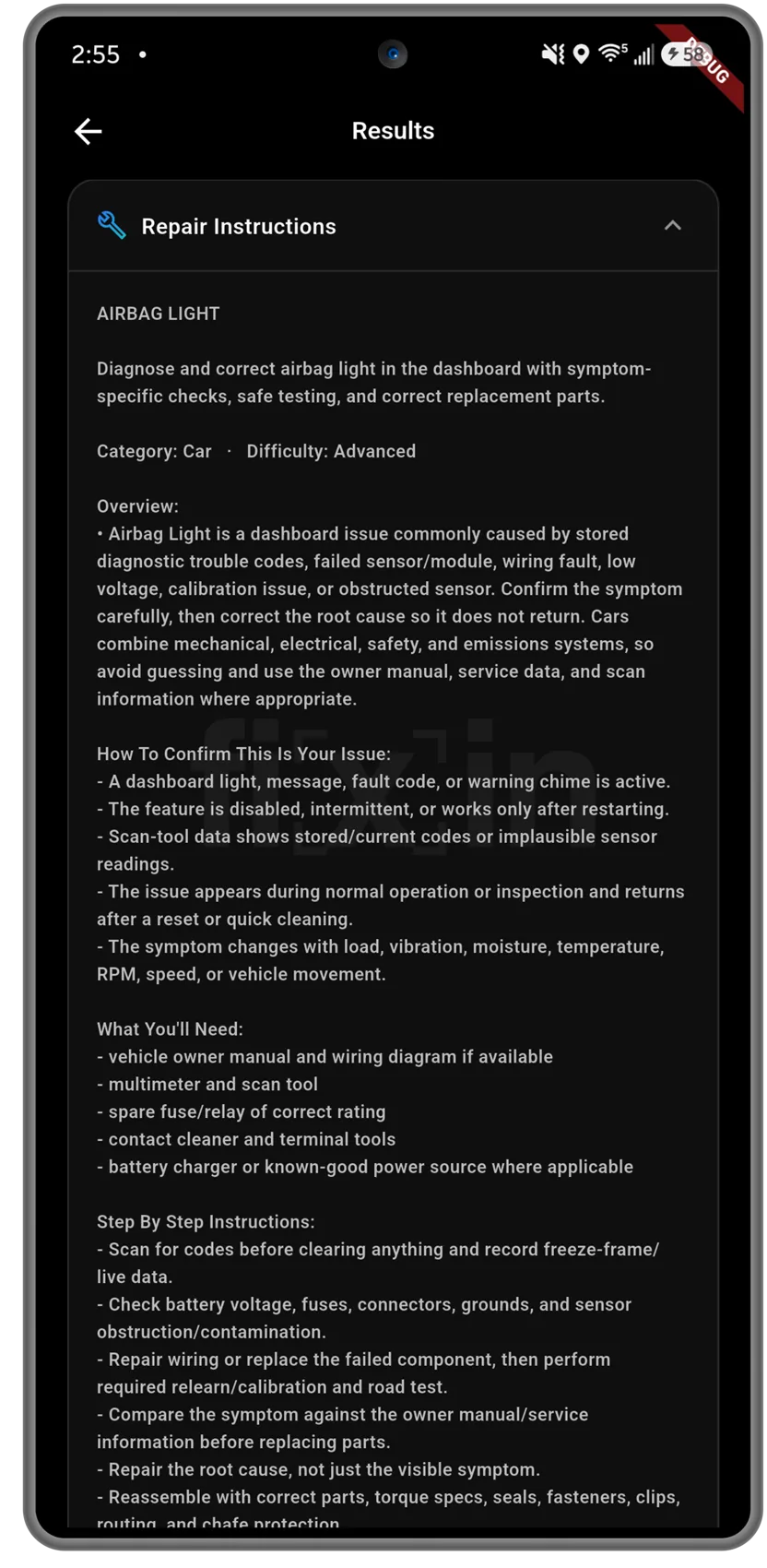
The guide opens with a difficulty rating and an overview of what usually causes the problem, then a How to confirm this is your issue section — the symptoms that would back the diagnosis up, or rule it out before you start buying parts.
Then What you'll need — the tools and supplies to have on hand — and the step-by-step procedure itself, with safety notes alongside.
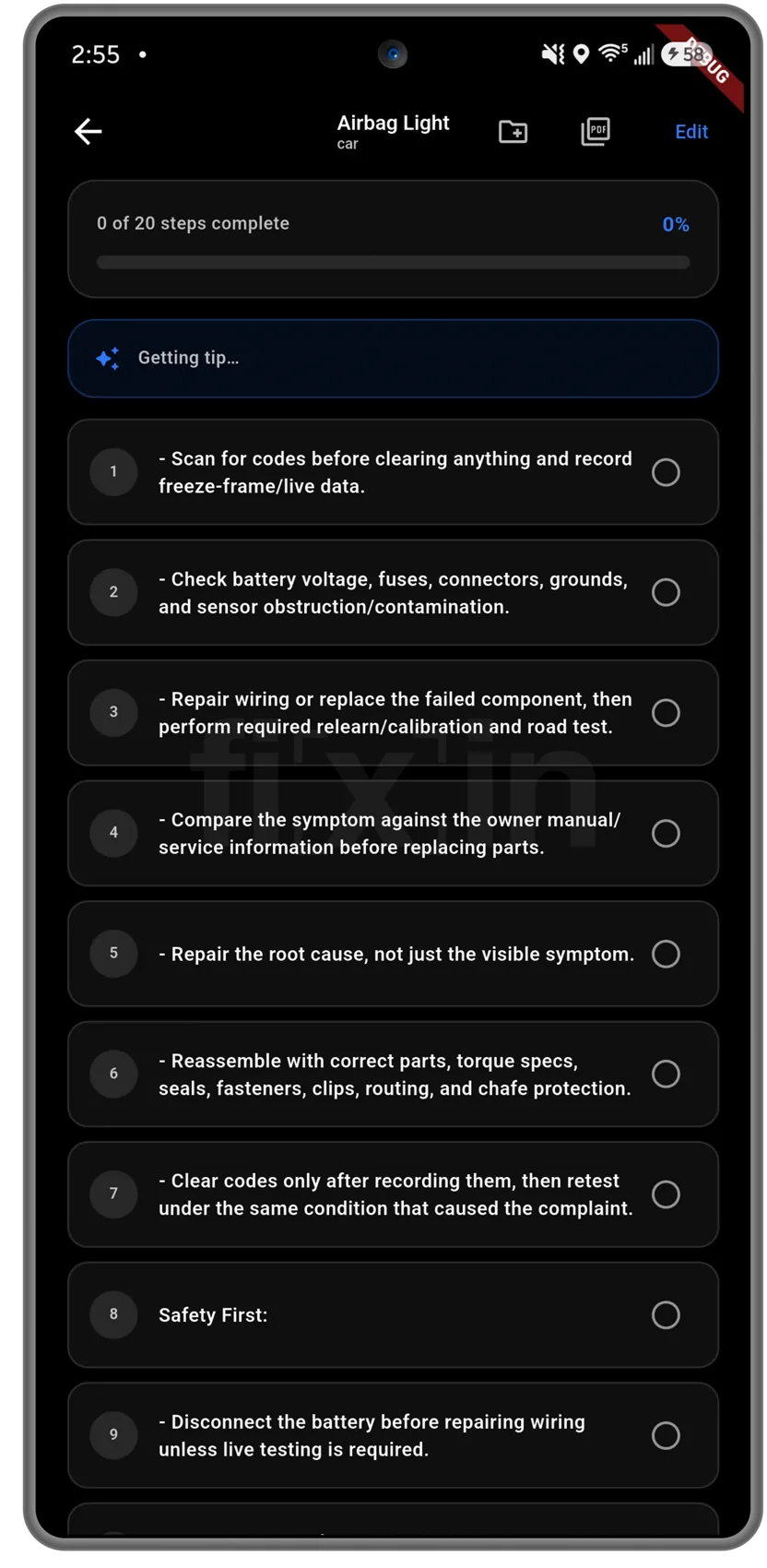
The procedure becomes a numbered worksheet you actually work from. Tick each step off as you go and the counter tracks the job — 0 of 20, 6 of 20 — so putting the phone down for a week doesn't cost you your place.
The whole sheet exports to PDF for a customer, an insurer, or the folder in the garage. File it under a project and the record stays with that vehicle, boat, or house.