

All Platforms
In active development

fixin,
in the browser.

Photo-first repair diagnosis, opened in any modern browser on the same account as your phone — no install, no account juggling, nothing to update. Built for the workbench, the service desk, and the second monitor.
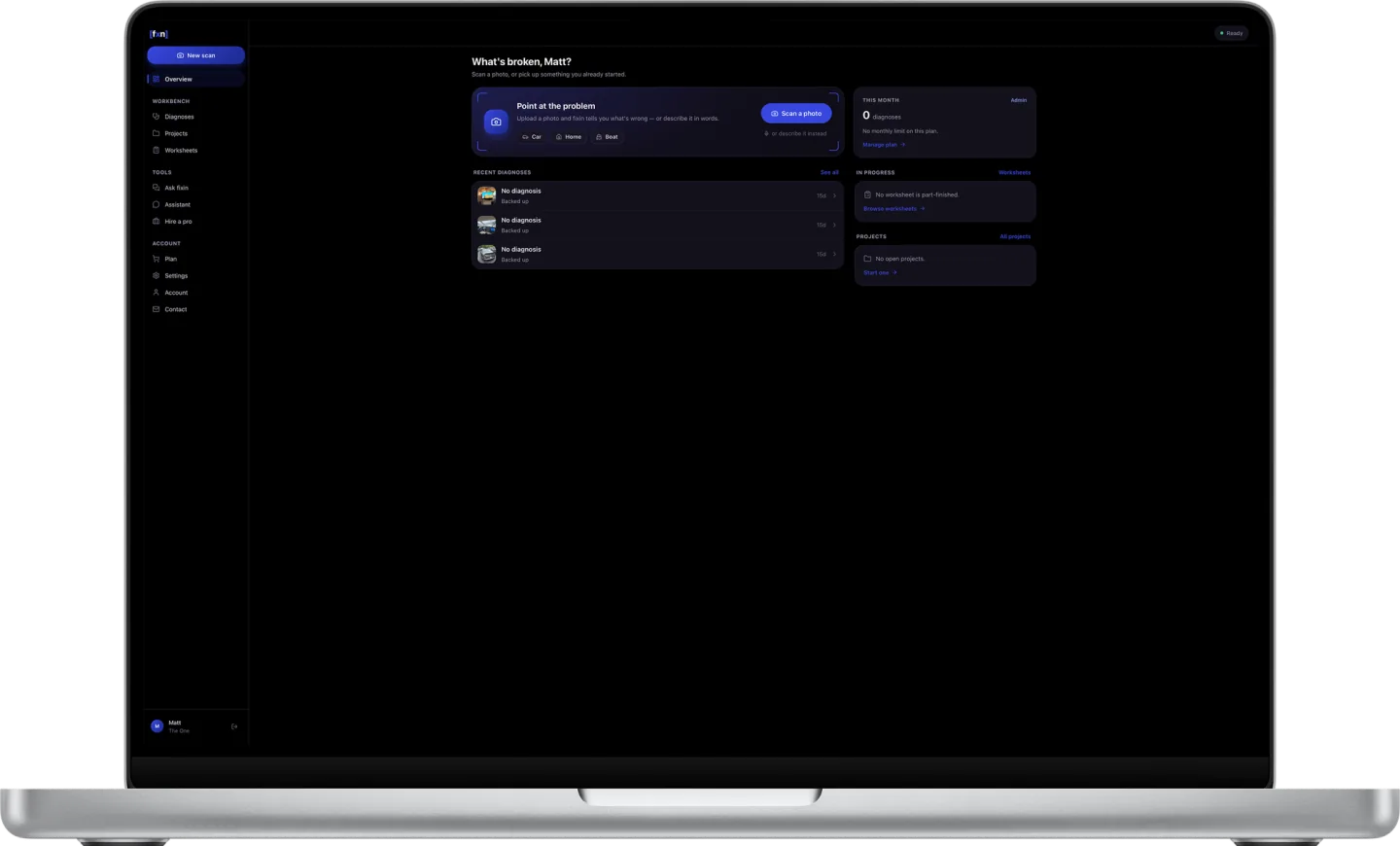
fixin Web on a laptop — the Overview screen of a new account, with a "Point at the problem" scan card above an empty diagnosis list and cards for this month's usage, worksheets in progress and open projects

Some repairs don't happen with a phone in your hand.

Under a car, elbow-deep in a bilge, or standing at a bench with a laptop open — the phone isn't always the right screen. fixin Web puts the workbench everywhere you already work.

Browser

fixin Web

  • Nothing to install — open a tab and go
  • Drag a photo in, paste one, or use the webcam
  • Repair guides and worksheets at full width
  • Every diagnosis your phone backed up, read back on a big screen
  • Worksheets that sync both ways with the app
  • The same account and the same sign-in — no second password

Four screens you'll actually live in.

A sidebar, a workbench, and no chrome in the way. Everything below is the browser build as it stands today, not a mockup of where it's going.
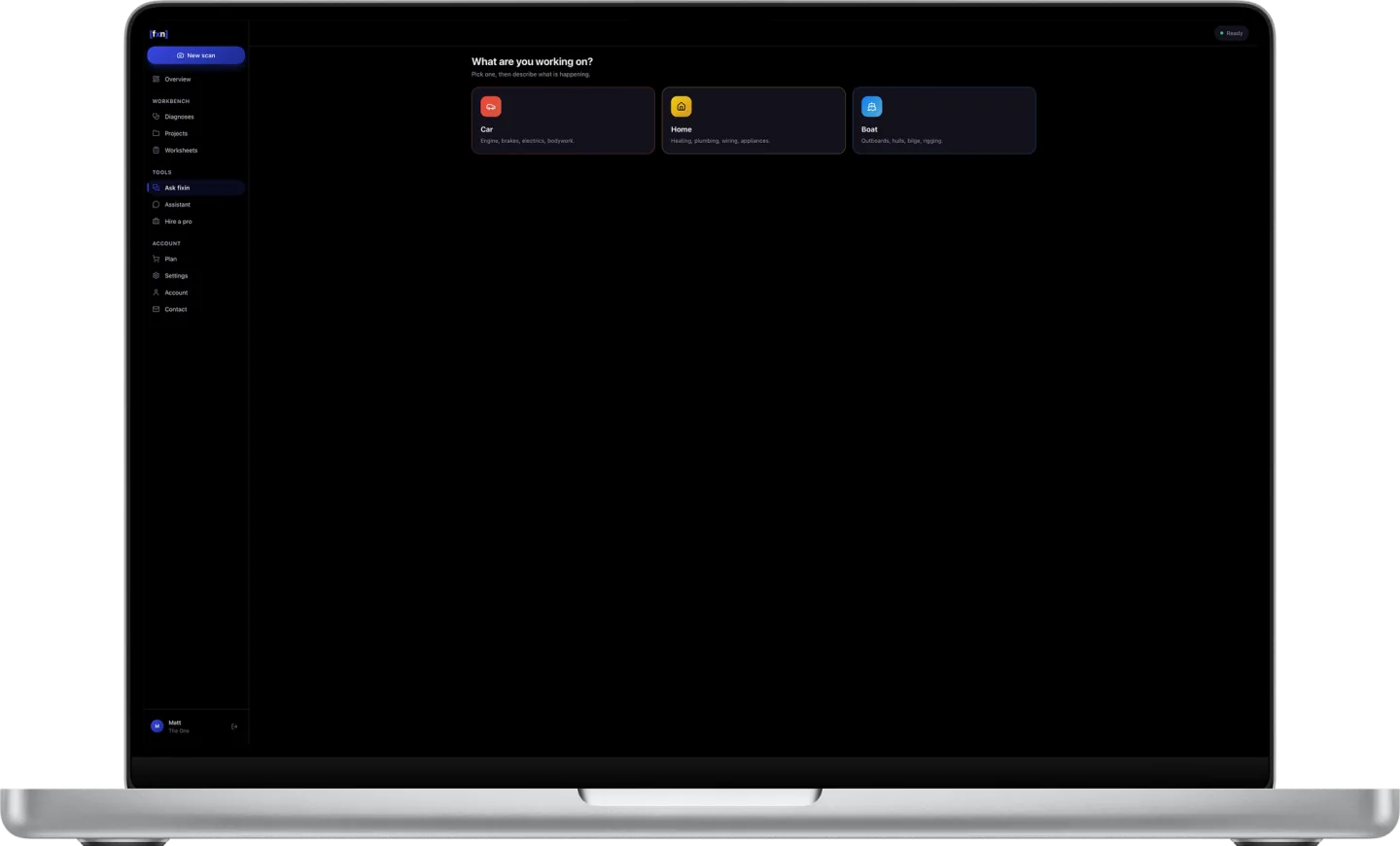
The Ask fixin screen — "What are you working on?" above three cards for Car, Home and Boat, each listing the systems it covers
Ask fixin

Name the domain, then say what's happening.

Car, home or boat isn't decoration — it decides which repair vocabulary the answer gets drawn from. "It won't start" means one thing under a hood and something else entirely in a bilge, and picking first is what keeps the answer from splitting the difference. Describe the symptom in your own words and you get possible causes back in plain language.
  • Engine, brakes, electrics and bodywork — heating, plumbing, wiring and appliances — outboards, hulls, bilge and rigging
  • Written by the fixin assistant rather than the on-device diagnosis, and labelled as such on the result
  • Keep the answer as a worksheet, or hand it to the assistant and keep asking
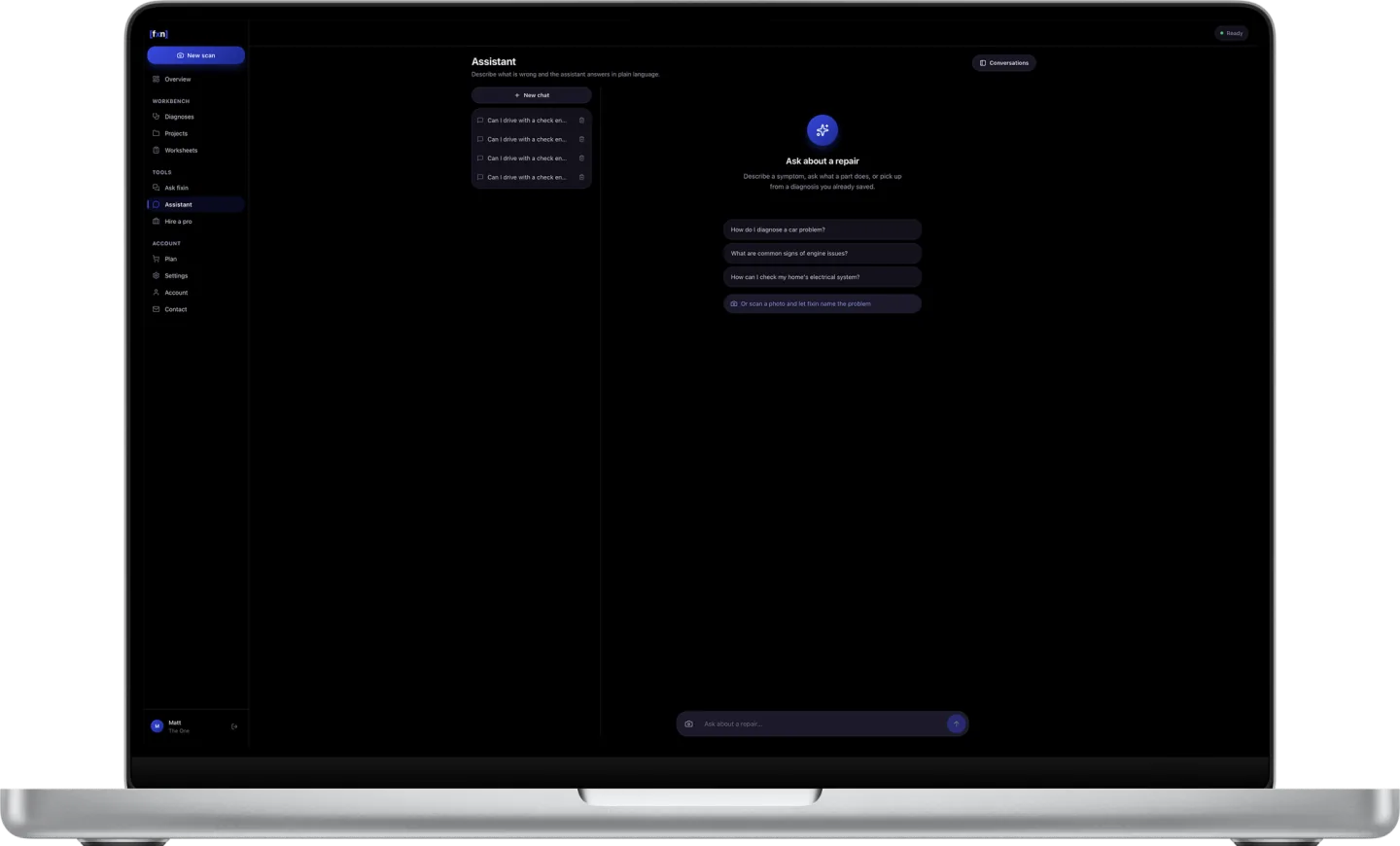
The Assistant screen — a saved conversation list beside an empty chat offering starter questions and a composer reading "Ask about a repair"
Assistant

A diagnosis is rarely the end of it.

What a part actually does, whether a noise is normal, what to check before pulling something apart — the assistant is a plain-language conversation about the job rather than a one-shot answer. Conversations are kept under your account instead of in the tab, so the thread you started on the shop laptop is still there on the one at home.
  • Every conversation saved to the account, not to the browser
  • Start from a suggested question, or pick up from a diagnosis you already saved
  • The camera button hands you straight to a scan when words run out
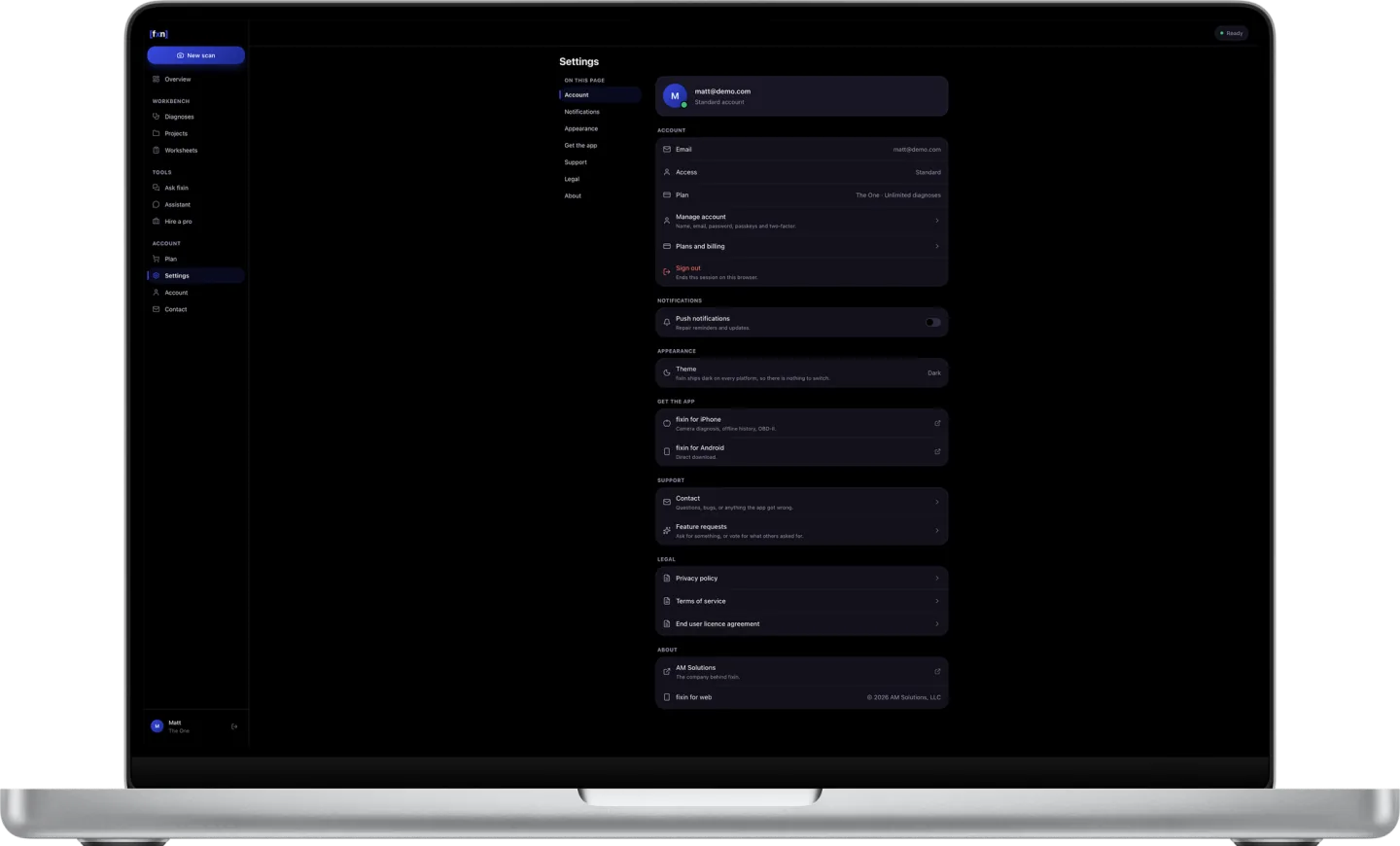
The Settings screen — account, notifications, appearance, links to the phone builds, support, legal and about, listed in one scrolling column
Settings

The whole account on one page.

Email, password, passkeys and two-factor; notification preferences; the legal documents; direct links to the iOS and Android builds — all in one scrolling column instead of buried three menus deep. Appearance is listed and then honestly dismissed: fixin ships dark on every platform, so there is nothing to switch.

  • Passkeys and time-based two-factor layered on top of the password
  • The phone builds linked from the screen you're already on
  • Closing the account is a link under Manage account, not an email to support
The Plans screen — three tiers side by side, The One marked as the current plan and Premiere marked recommended
Plans

Three tiers, and the code that unlocks one.

A paid plan is bought as an access code. It lands in your inbox the moment payment clears, and the code is what carries the tier onto your account — which is why the plans sit inside the app rather than only on a pricing page. Basic is deliberately narrow. The One exists for shops running more than one bench.

  • The code arrives by email and moves your account onto the plan
  • Every tier reads the same history your phones backed up
  • What each tier covers is laid out on the store page

What a browser can't do, said plainly.

A tab is not a phone, and pretending otherwise would cost you the one thing worth having here. Four differences worth knowing before you rely on the web build.

Privacy

The photo is uploaded

The iOS app classifies on the device and nothing leaves the phone. A browser cannot make that promise — on the web the photo goes up, gets classified, and the result comes back. If privacy is the reason you're here, use the app.

History

A web scan isn't a saved diagnosis

The diagnoses in your history are the ones your phones backed up, and they're the only ones carrying a strong, possible or low match. A scan you run in a tab gives you a result, and a worksheet if you want one — no match strength, and no new row in that history.

Hardware

Parts, recalls and OBD-II stay native

Parts and tools, service history, recalls and TSBs, and the OBD-II reader appear on the web marked "On the phone app". That is exactly what they are, and the label is there so you find out now rather than mid-job.

Projects

Projects stay in the browser you made them in

Worksheets sync both ways. Projects don't — they're held in the browser rather than the account, so the ones you group on a laptop won't appear on your phone, or on the machine at the other end of the shop.

Built alongside the app, not after it.

The browser build ships on the same cadence as everything else. This is what's actually being worked on, rather than a wish list.

Scans that stick around

Today a scan in the browser gives you a result and, if you want it, a worksheet. Writing it back into the same history your phones already fill is the next thing on the list.

Something to hand someone else

A diagnosis you can send to a mechanic, a landlord, or the person who actually owns the boat. Right now a diagnosis URL sits behind your sign-in, so it only opens for you.

hirin on the big screen

Hire a pro is in the sidebar with the marketplace not yet behind it. Pro connection works in the app today; wiring the browser to the same network is roadmap, not shipped.

Before you open a tab.

Do I need an account?

Yes — and it's the same account as the phone app, so if you already have one, just sign in. A paid tier arrives as an access code by email when you buy a plan.

Is it the same account as the app?

The same one. Sign in on the web and the diagnoses your phones backed up are waiting, along with any worksheet you've started on either side.

Does it work offline?

No. There's nothing to install and nothing cached — lose the connection and fixin Web stops until it comes back. Offline diagnosis is a native feature and it is going to stay one.

Where does my photo go?

Up to the server, to be classified, and then the result comes back down. That is the honest difference from the iOS app, which classifies on the device and uploads nothing. What happens to it after that — retention, and what may be used de-identified to improve the models — is written out in the privacy policy rather than summarised into a promise here.

Does it work on a phone browser?

It does — the sidebar becomes a drawer on a narrow screen and the split views stack. It's the same app rather than a cut-down mobile page, though if you're holding a phone already, the native app does more.

What does it cost?

The same three tiers as everywhere else, with the paid ones bought as an access code. Prices and what each one covers are on the store page.

Help shape fixin Web.

The beta is open and the roadmap is still soft. If you fix things for a living — or just fix a lot of things — your feedback moves this faster than ours does.